
What is eFiling?
eFiling is FERC’s primary online system for submitting filings related to FERC’s proceedings. It supports most file formats and allows both regulated entities and the public to submit applications, requests, complaints, protests, and comments for all docket types.
Note: Filing a Comment does not make you an intervenor. If you want to intervene in a docket you need to file a motion to intervene using FERC’s eFiling application. See the eFiling User Guide for more information.
When Should I Use eFiling?
You should use eFiling if you want to:
- Submit comments for any docket type (including those supported by eComment)
- Upload files, attachments, or images with your comments.
You must use eFiling to submit comments for certain docket types, such as most types of electric dockets (including those with the ER, EL, and EC prefixes).
Note: eRegistration is required before you can eFile. If you plan to upload any documents or attachments, you must use eFiling — even if the proceeding allows for the use of eComment.
How to eFile Comments
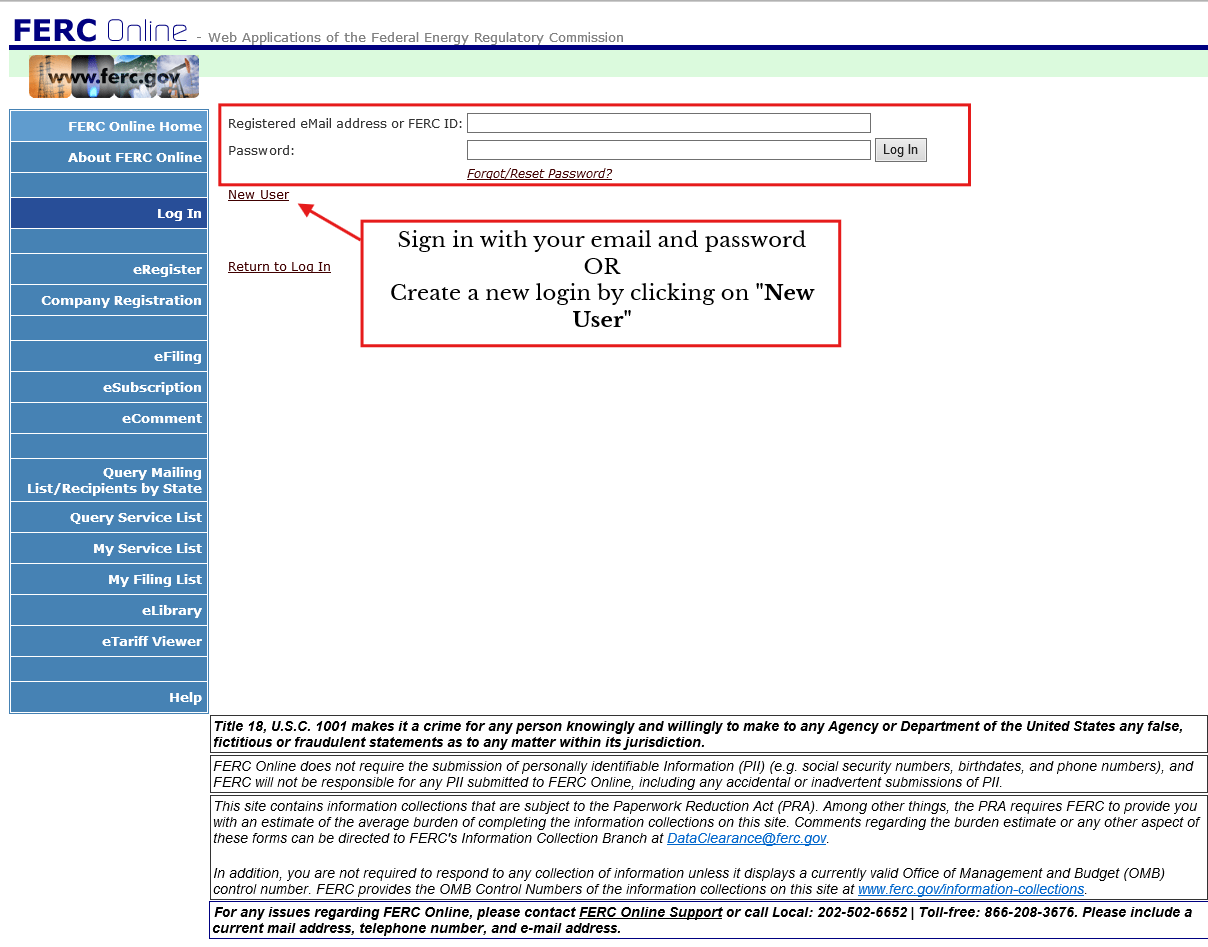
Step 1: Sign in or create a FERC Online Account
Go to FERC Online and sign in with your email and password or create a login by clicking on New User or eRegister.
Complete the registration form and create an account.
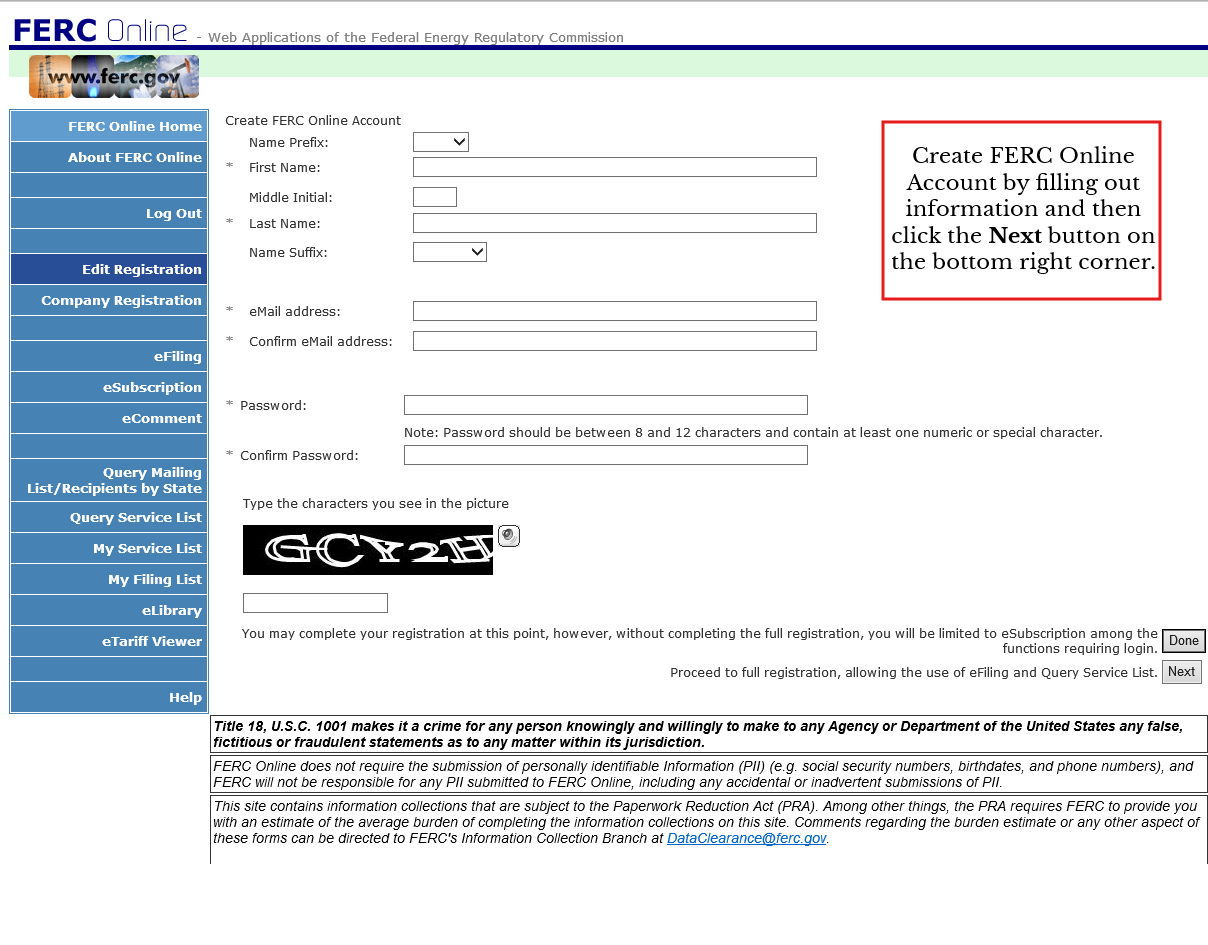
Note: Complete the full registration to access all functions requiring login. Check your email to validate and activate your account (look for the eRegistration confirmation email).
For detailed instructions, see the eRegistration User Guide.
Step 2 – Select Filing Type
Once your account is active, sign in and select eFiling.
Follow the prompts to:
- Choose Filing Type
- Select: General> Comment (on Filing, Environ. Report, or Tech Conf)
- Click Next
- (Optional) You may also choose:
- General> Comment (on Rulemaking: RM, PL, AD dockets)
- Click Next
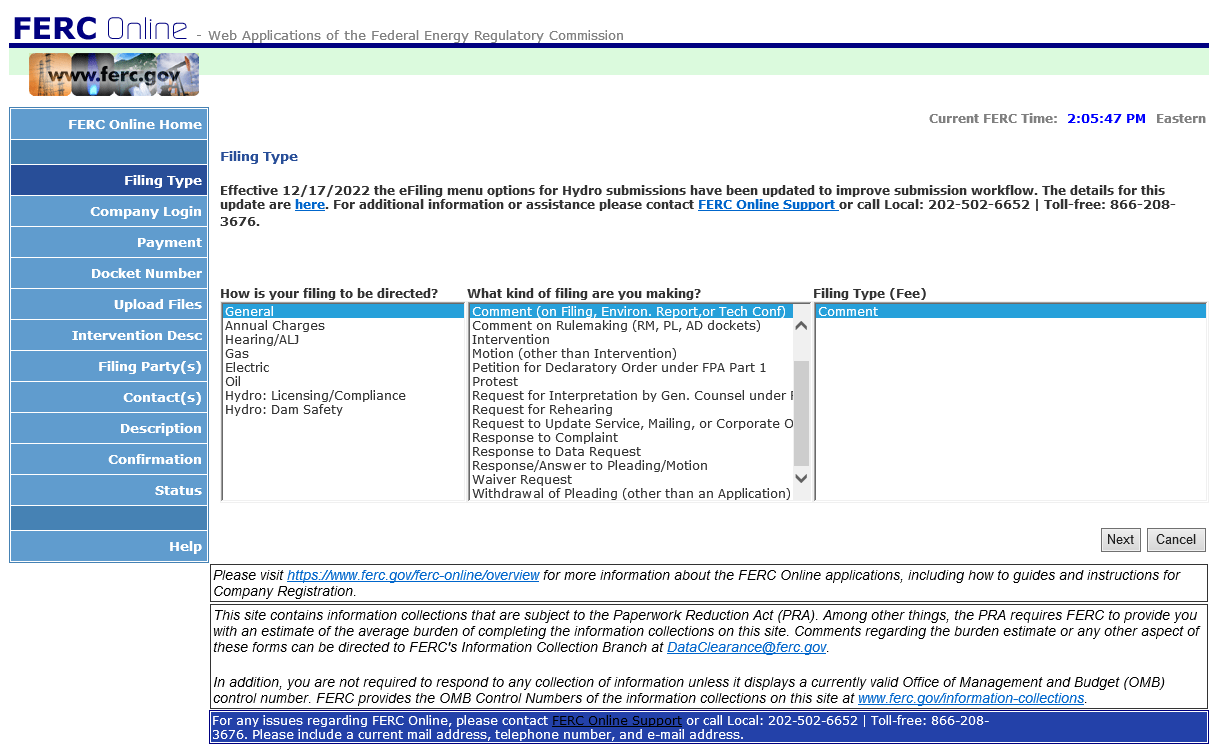
Step 3 – Select Docket
Enter Docket Number (e.g., ER25-XX-000) and click Search. Select the correct proceeding (click the blue plus sign) and then click Next.
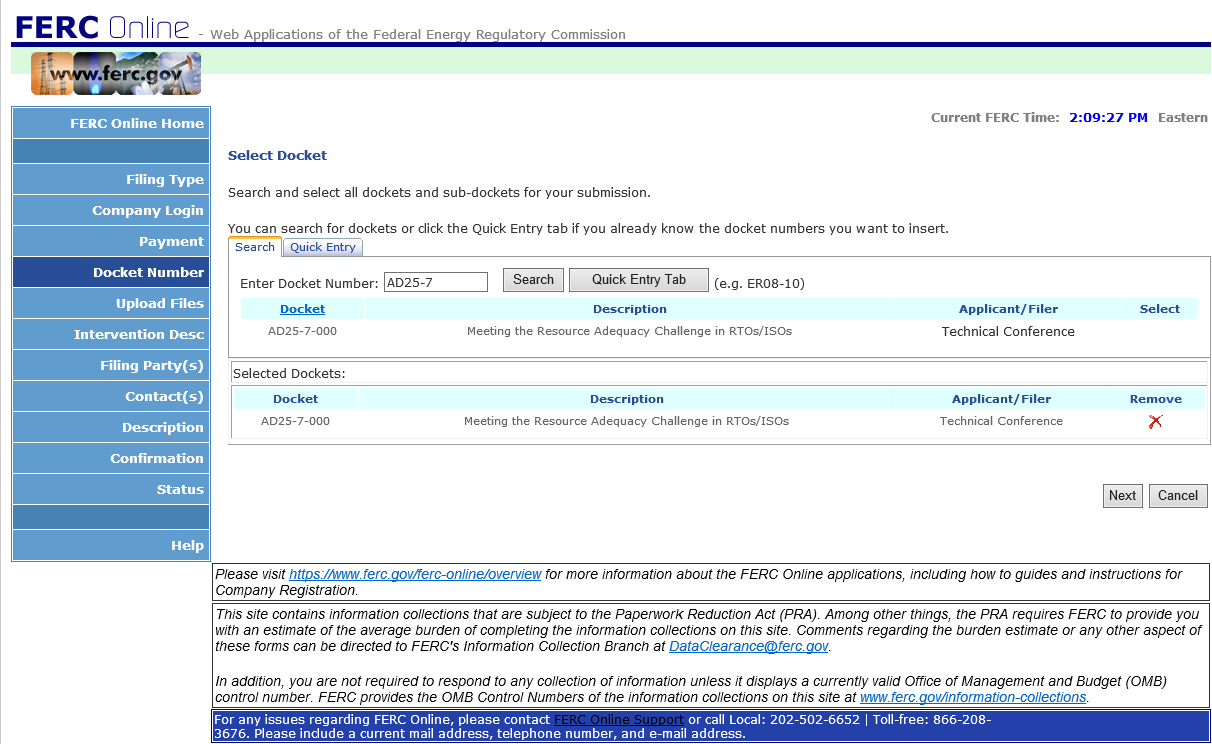
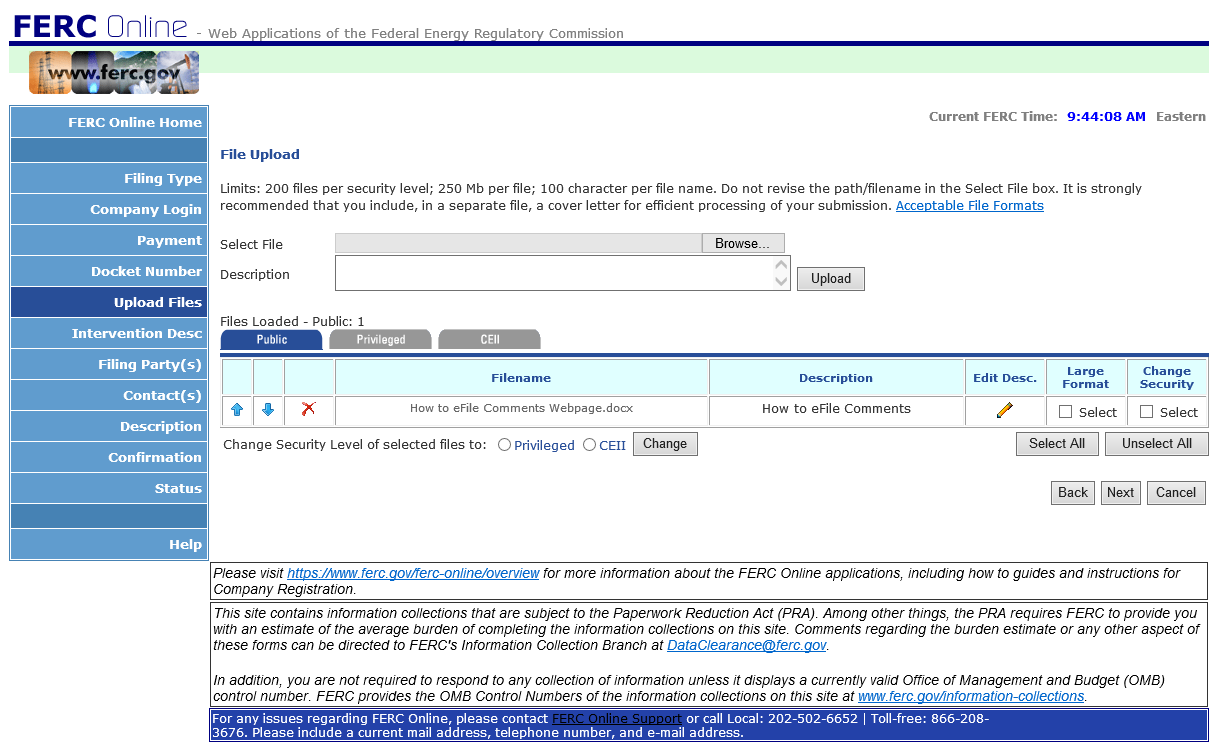
Step 4 – Upload your Files
Click Choose File and locate the file(s) that will be part of your submission.
Click Next once all files have been uploaded.
Note: There are three security tabs (Public, Privileged, or CEII) where you can upload your files. “Public” is the default tab for uploads. There must be at least one public file.
Please upload public files first starting with your cover letter. FERC will apply a “time stamp” establishing the time of filing after the last file has been uploaded and you hit “Next.”
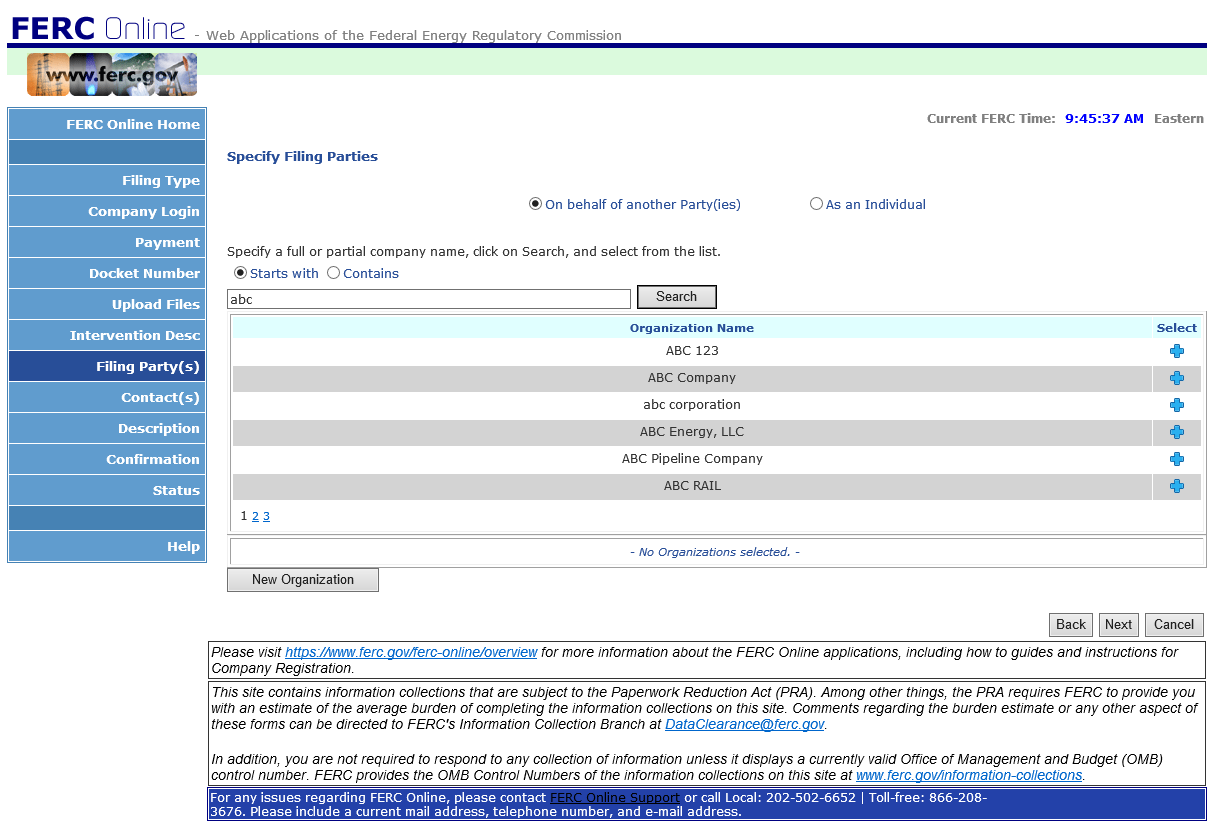
Step 5 – Specify your Filing Party
Enter the name of the filing party. This is the person or organization the filing pertains to, not the representative submitting it. Multiple filing parties can be selected.
Select “As an Individual” if filing for yourself.
Click Next once all parties have been selected.
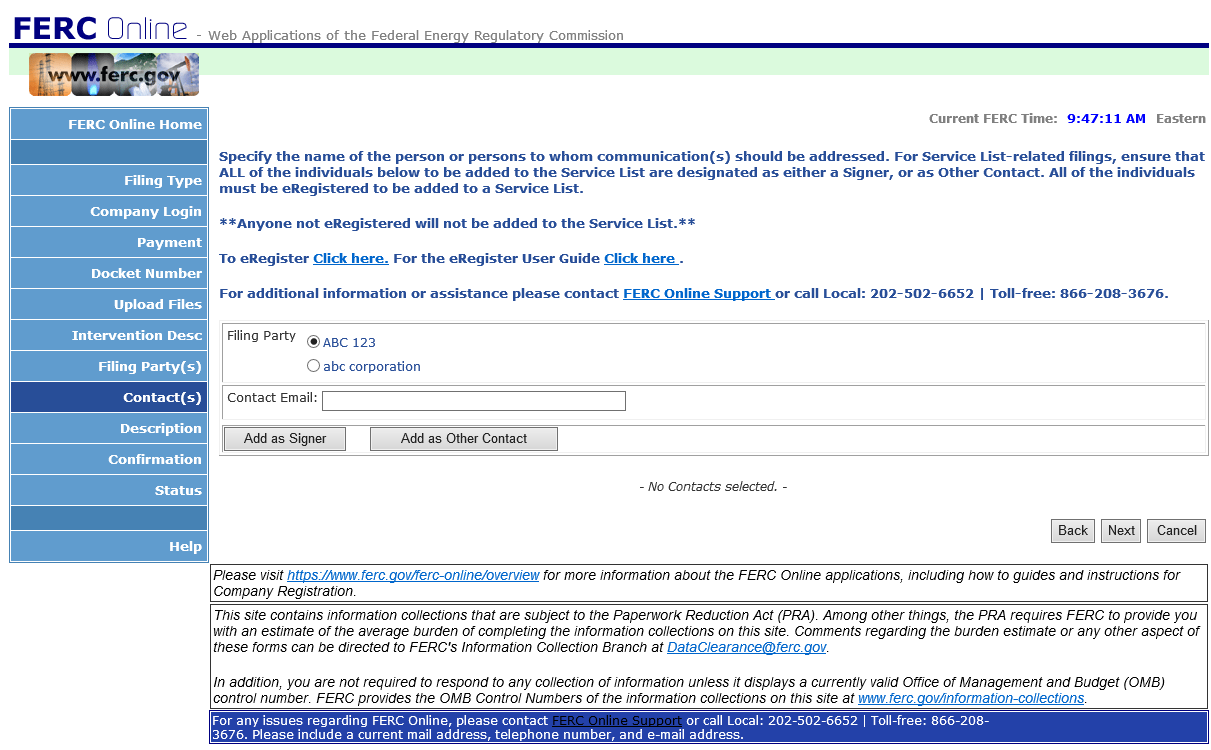
Step 6 – Enter Contact Information
Enter the email address for the party.
Note:
All email accounts must be eRegistered
Each party must have a signer
Multiple Signers and Other Contacts can be added for each party
Signers and other contacts will be added to the Service List where applicable
Click Next once all Signers and Other Contacts have been added.
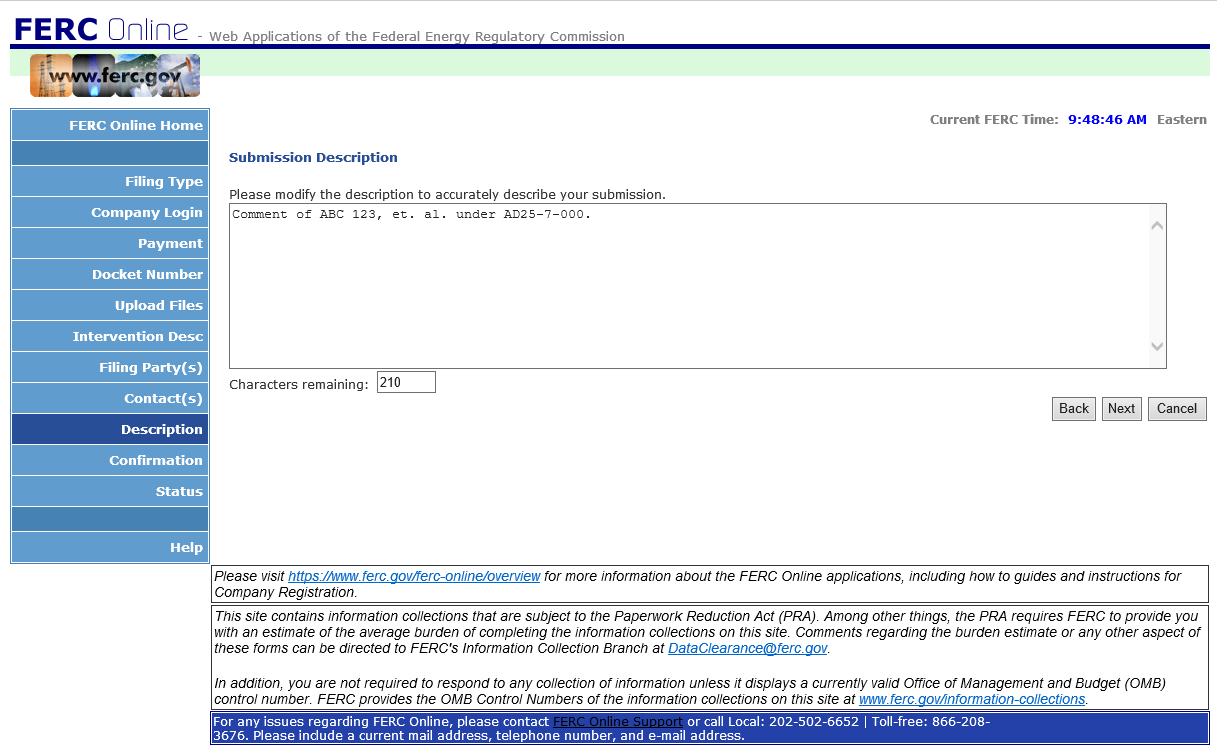
Step 7 – Describe Your Submission
Modify the description that best describes the filing if necessary.
Click Next.
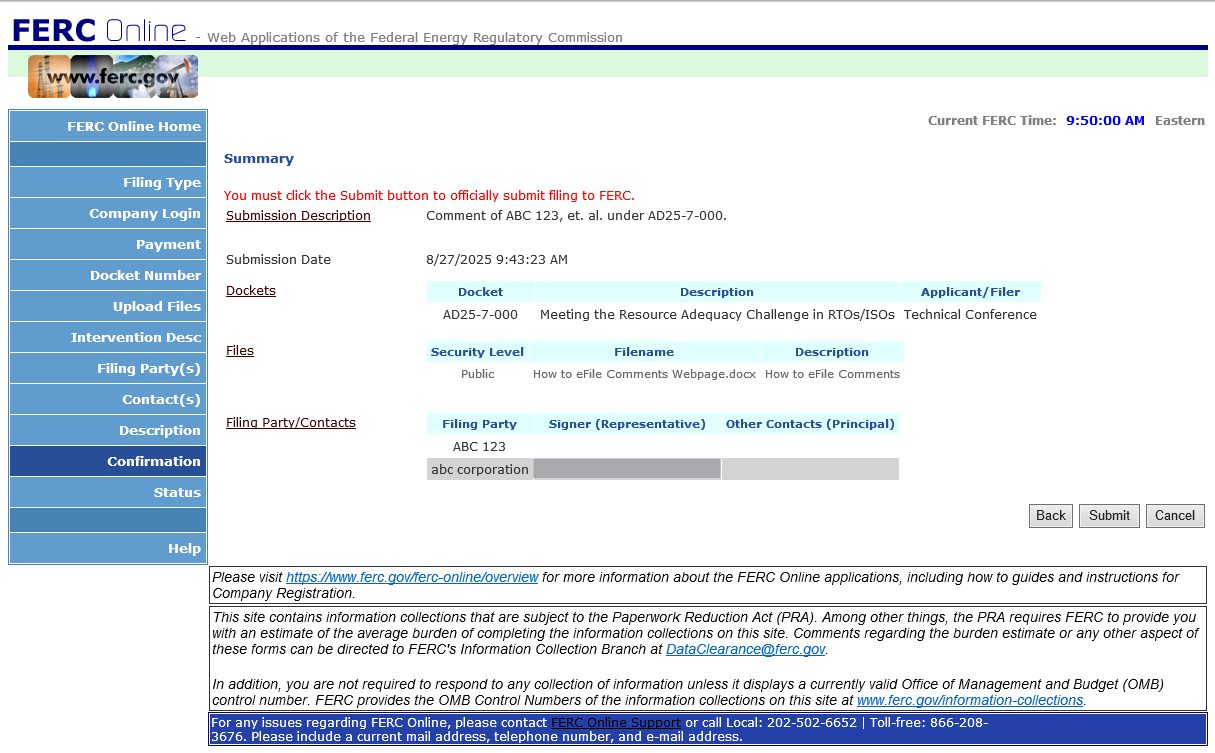
Step 8 – Review Your Submission
Review and verify all information is correct then click Submit.
Step 9 – eSubscribe to the docket of your interest
eSubscription makes it easy to keep track of individual proceedings at FERC. Once you eSubscribe to a docket, you will be notified via email when FERC issues a document in the proceeding and when others file documents in that proceeding
If you have questions or problems, please contact FERC Online Support at [email protected] for assistance.
You may also contact OPP by email at [email protected] or phone at 202-502-6595. All media inquiries should be directed to [email protected].
Quick Links
Contact Information
-
FERC Online SupportEmail: [email protected]
-
News MediaEmail: [email protected]