
The Federal Energy Regulatory Commission (FERC) provides two electronic options for submitting comments in Commission proceedings. The eComment system allows individuals to submit brief, text-only comments – up to 10,000 characters – without creating an account and is the quickest way to file online.
Those wishing to submit longer comments, attachments, or filings on behalf of an organization should use FERC’s eFiling system, which requires an eRegister account. eRegistering provides secure access to FERC’s online services, including eFiling and eSubscription.
Note: Filing a comment does not make you an intervenor. If you want to intervene in a docket you need to file a motion to intervene using eFiling. See the eFiling User Guide for more information. If you are an organization, please file a comment through the eFiling system by logging in.
By filing a comment online, you are participating in the official administrative record. To read the Commission’s Comment Policy, please view it here.
To use eComment, dockets must begin with one of the following prefixes:
P: Hydroelectric licensing/re-licensing project
PF: Pre-filing for a natural gas project
CP: Application for authorization to construct a natural gas facility
PT: Pre-filing for permits to site interstate electric transmission lines
ET: Application for a permit to site interstate electric transmission lines
AD: Administrative
PL: General Policy Cases
RM: Rulemaking Proceedings
If the docket does not begin with one of these prefixes, you must eRegister and eFile your comment instead.
The application will time-out after 60 minutes of inactivity. It might be helpful to create a Word or Text file so you may copy and paste into the comment box. There is a limit of 10,000 characters in the comment text box.
Step by Step Guide on “How to File a Comment Online”
Step 1:
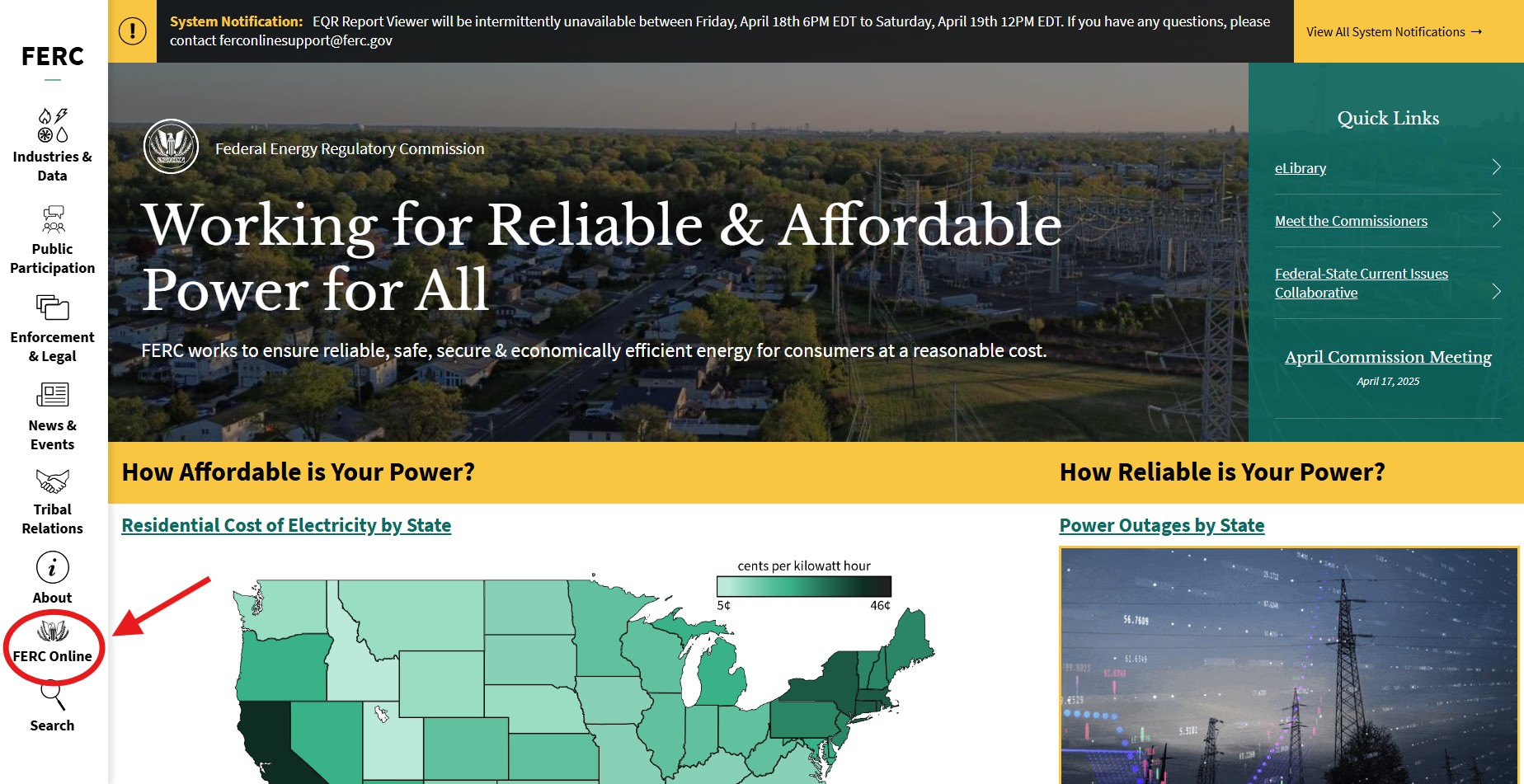
On FERC.gov, click on FERC Online on the left-hand side:
- The Commission expects parties to file a comment in a timely manner based on the reasonably foreseeable issues arising from the applicant's filing and the Commission's notice of filing.
- It is strongly encouraged to electronically submit comments through the eFile link on the Commission's website. If you cannot file online, you may mail or hand deliver a comment (see below for contact and address information).
- If you choose to mail a comment to a proceeding, you must submit a paper copy of the comment to the following address. The copy must clearly identify the project name and docket number on the first page.
Attention:
Debbie-Anne A. Reese, SecretaryUSPS Mailing Address:
Federal Energy Regulatory Commission
888 First Street, N.E.
Washington, DC 20426Hand/Other Delivery Method:
Federal Energy Regulatory Commission
12225 Wilkins Avenue
Rockville, Maryland 20852.
Receipt of mail sent via the US Postal Service may be subject to irradiation and significant delays.
Step 2:
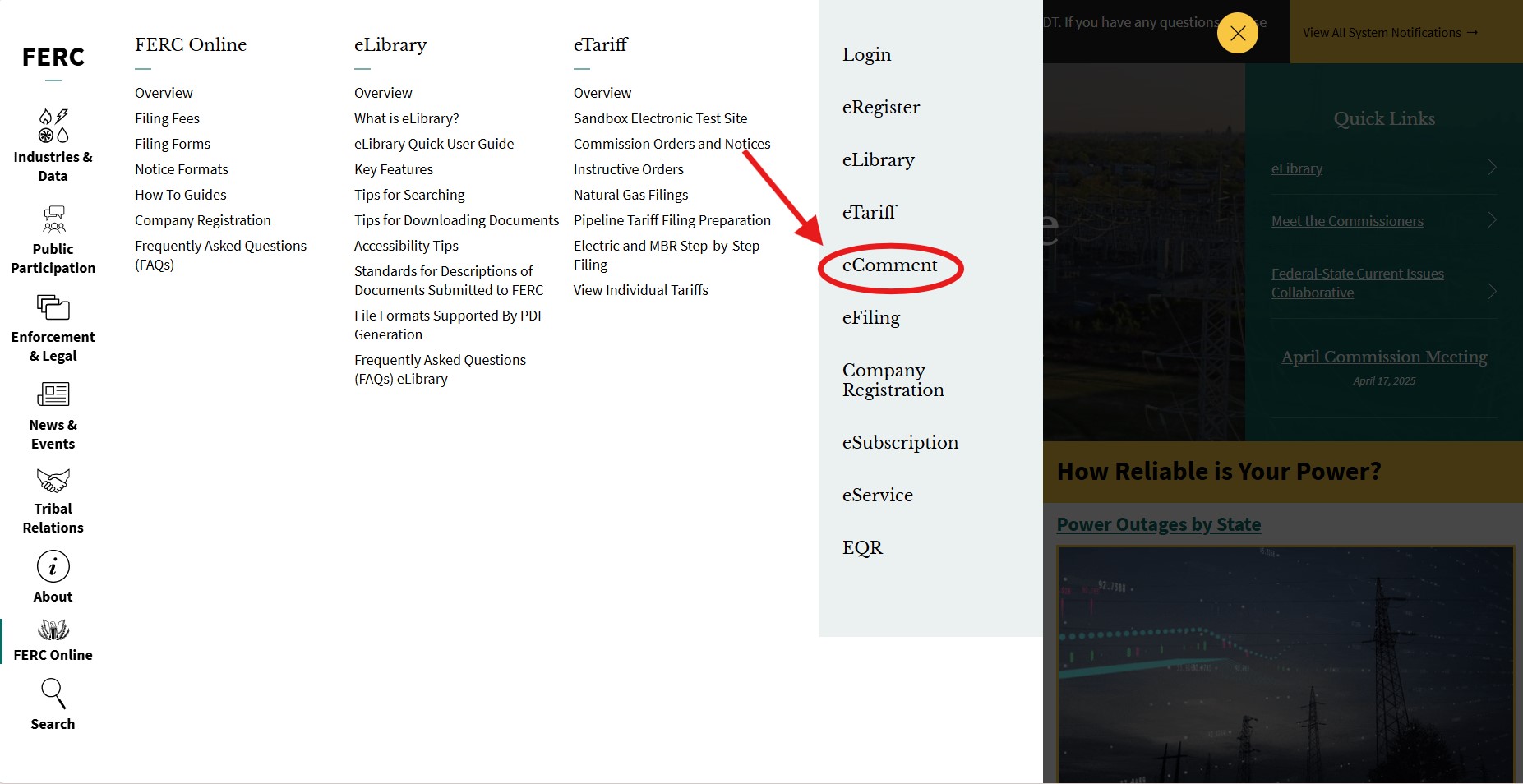
Click on eComment in the Menu on the right-hand side.
Step 3:
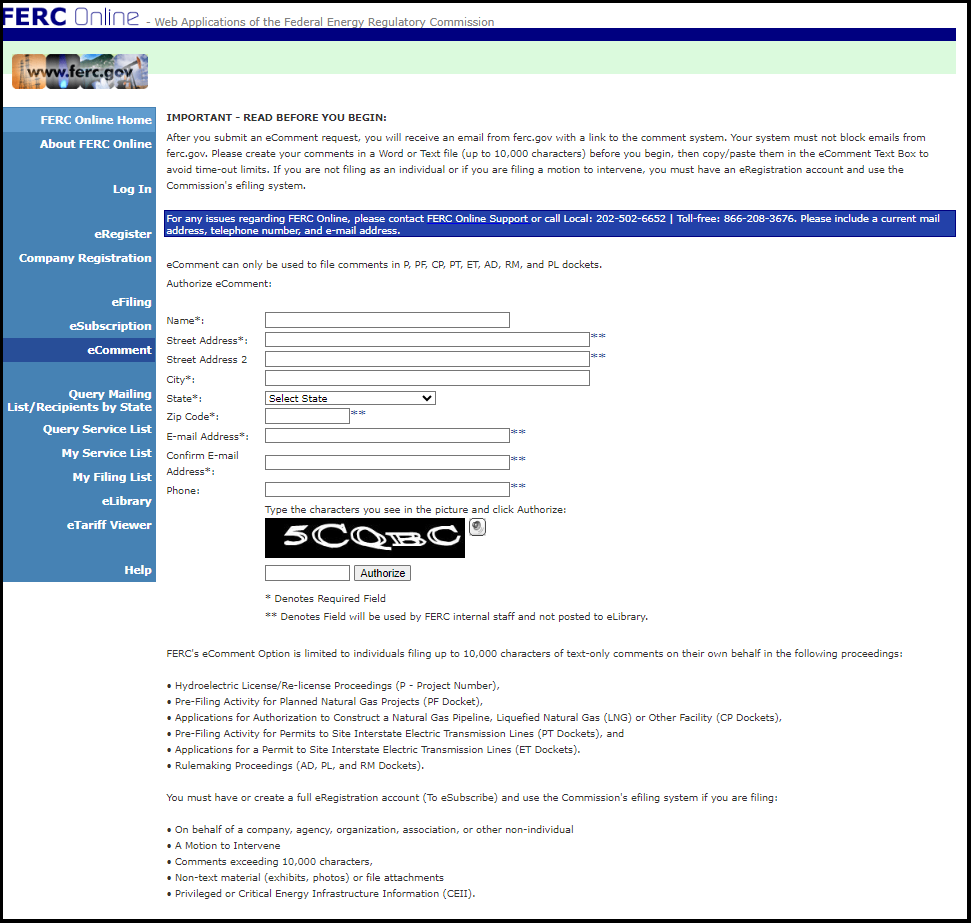
Fill out the eComment form and click the Authorized button.
After submission, you should receive an email from FERC.gov with a link to the comment system. Make sure your email provider does not block emails from FERC.gov or check your spam folder.
Step 4:
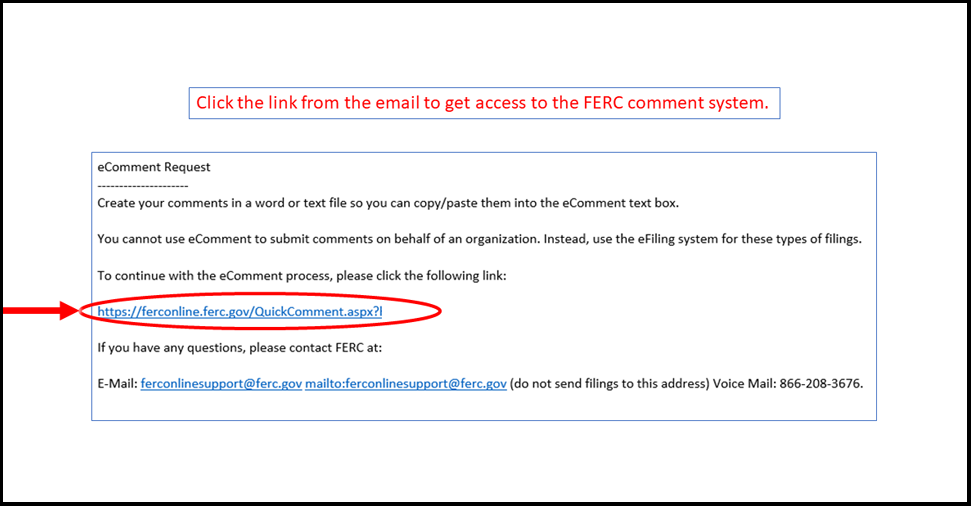
Click the link in the email you received to continue to the comment system. It will look similar to the email below.
If you have not received an email after submitting the eComment form, contact FERC Online Support at [email protected]
Step 5:
The link from the email will bring you the to the eComment system.
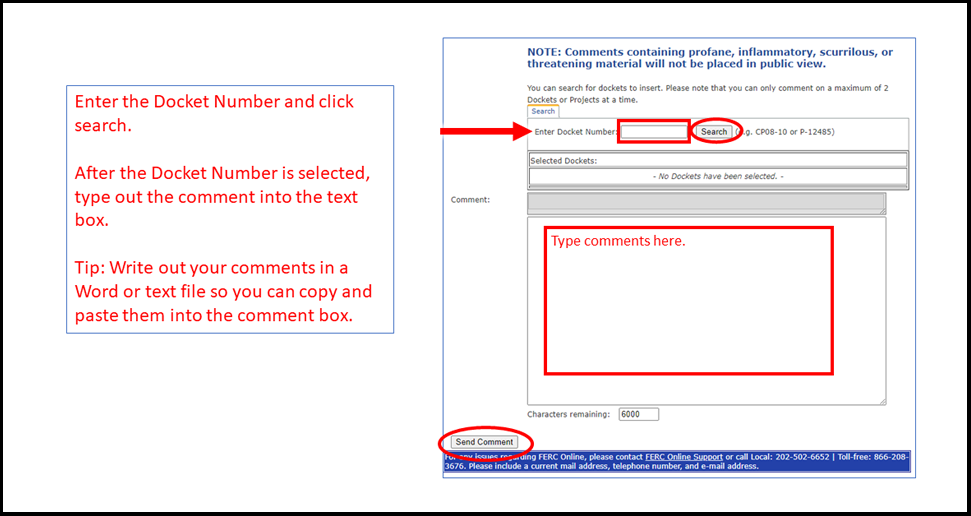
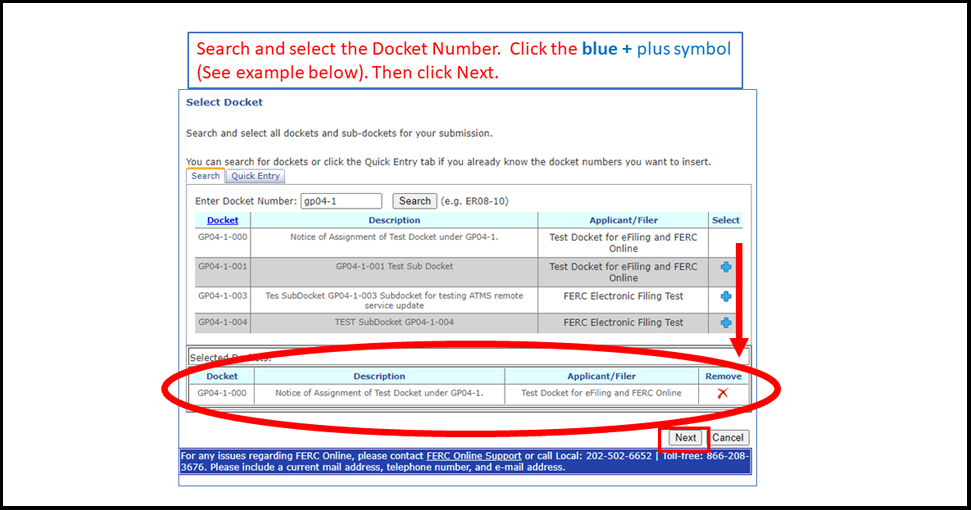
Search and select the Docket Number. To select the Docket Number, click the blue + plus symbol.
Type out the comment and click the Send Comment button.
Step 6:
Click the Send Comment button on the last screen to confirm that you want to file a comment.
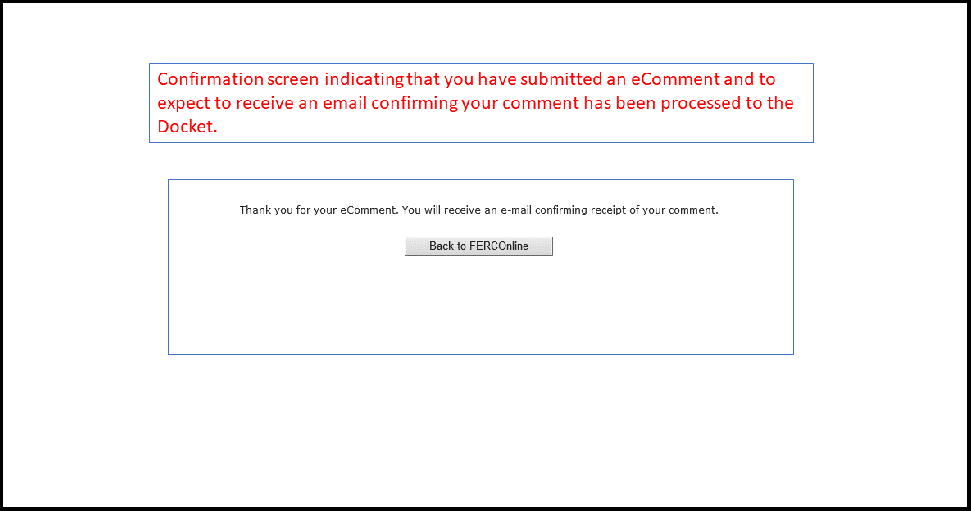
Next, you will see the screen saying that you have successfully submitted a comment and you will receive an email confirming your submission.
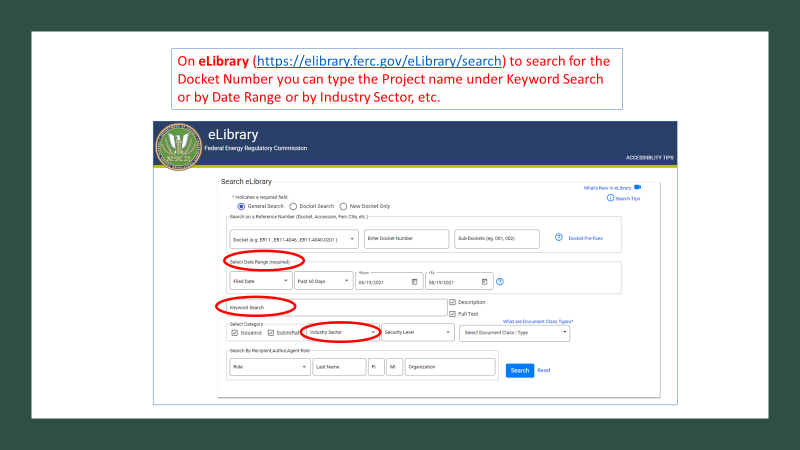
Tip: For reference, to search for a Docket Number, click on eLibrary from FERC.gov homepage.
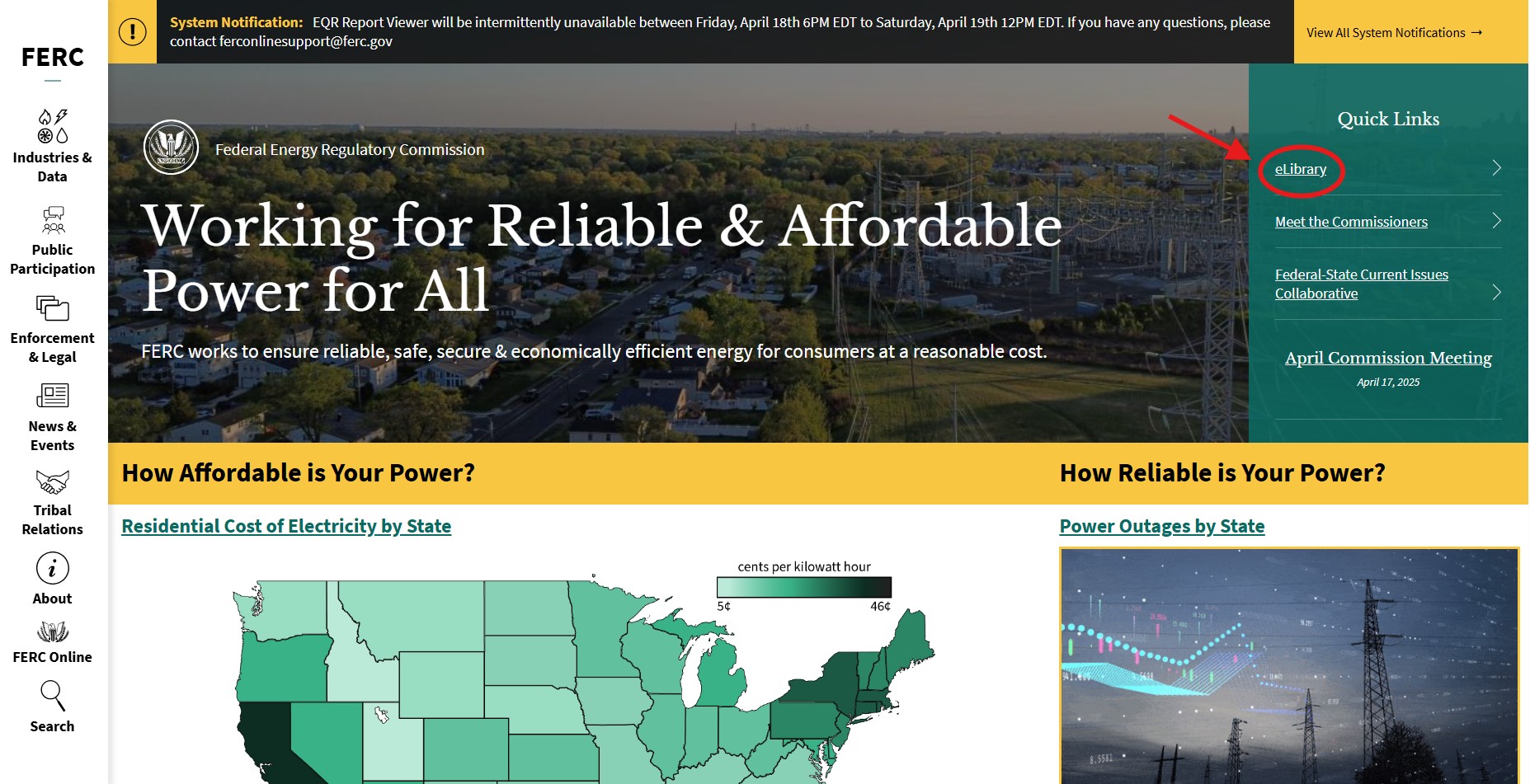
On eLibrary, you can search for the Docket Number by searching by project name under “Keyword Search” or by Date Range or by Industry Sector, etc.
Quick Links
Contact Information
-
FERC Online SupportHours of Operation 8:00 -5:00 ET | TTY: 202-502-8659Telephone: 202-502-6652Toll-free Telephone: 1-866-208-3676Email: [email protected]